
ETF Reverse Lookup Tutorial
The ETF Reverse Lookup answers one question: which funds hold this stock? Search for any stock and you get every ETF that holds it, along with how much of each fund it makes up.
It's useful in both directions. If you own a stock, you can see which funds give you extra exposure to it without you realizing. And if you want more of a stock, you can find the funds that lean into it hardest.
Everything in this tutorial works on a free account. A few extras are part of Stock Analysis Pro and are marked as such along the way.
On this page
Look up a stock
Type a company name or ticker symbol into the search box at the top. Results appear as you type, and the search matches both name and symbol, so "apple" and "AAPL" both get you there.
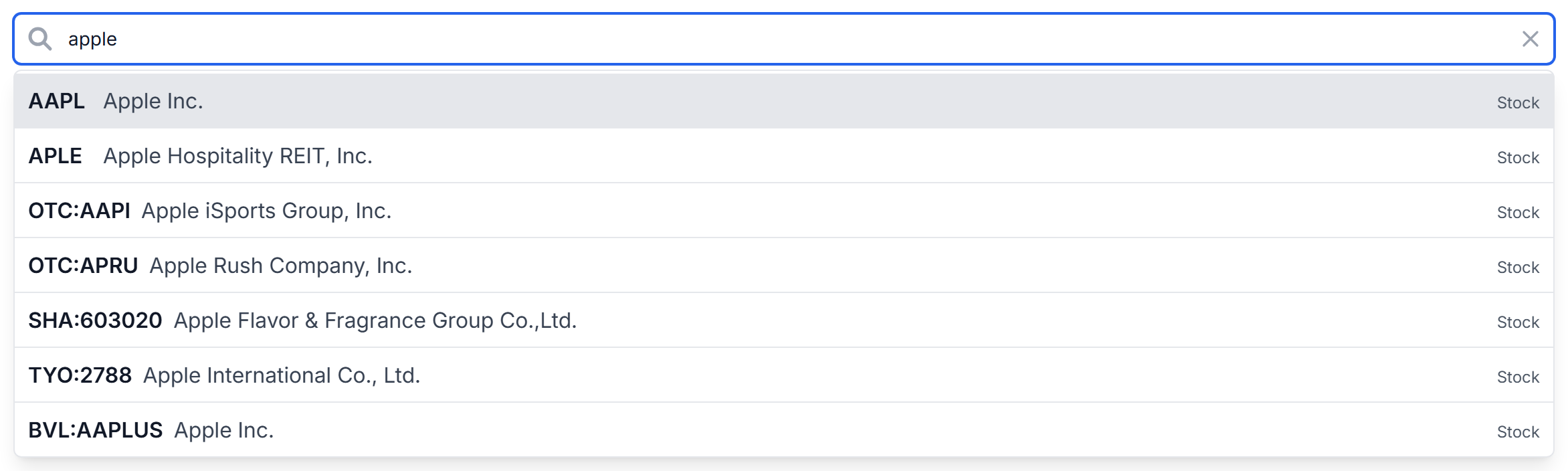
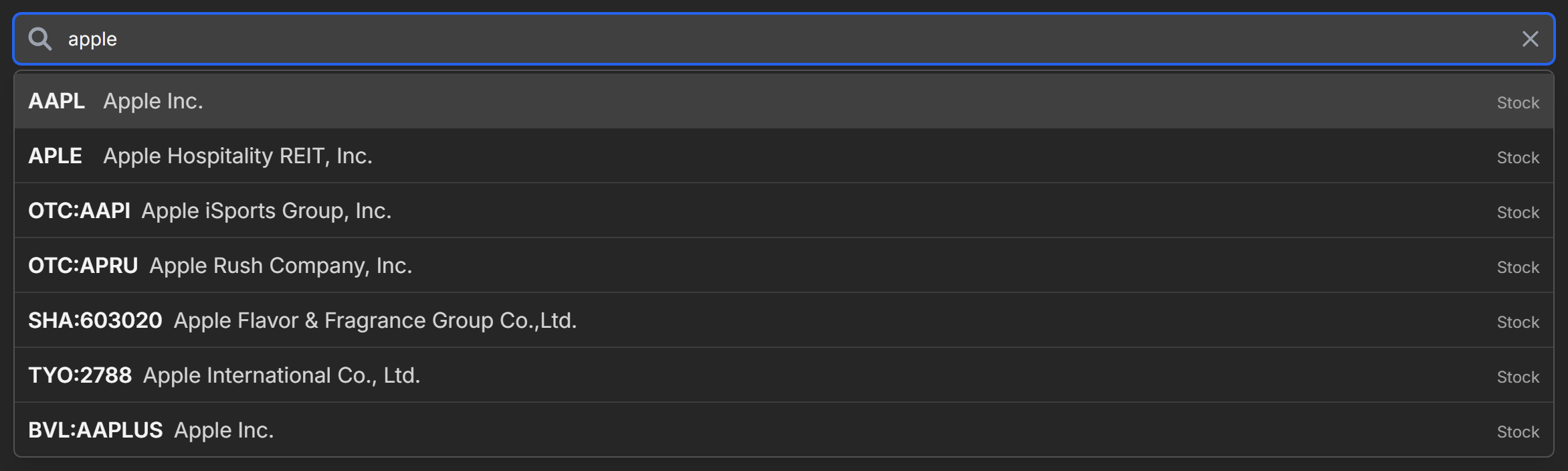
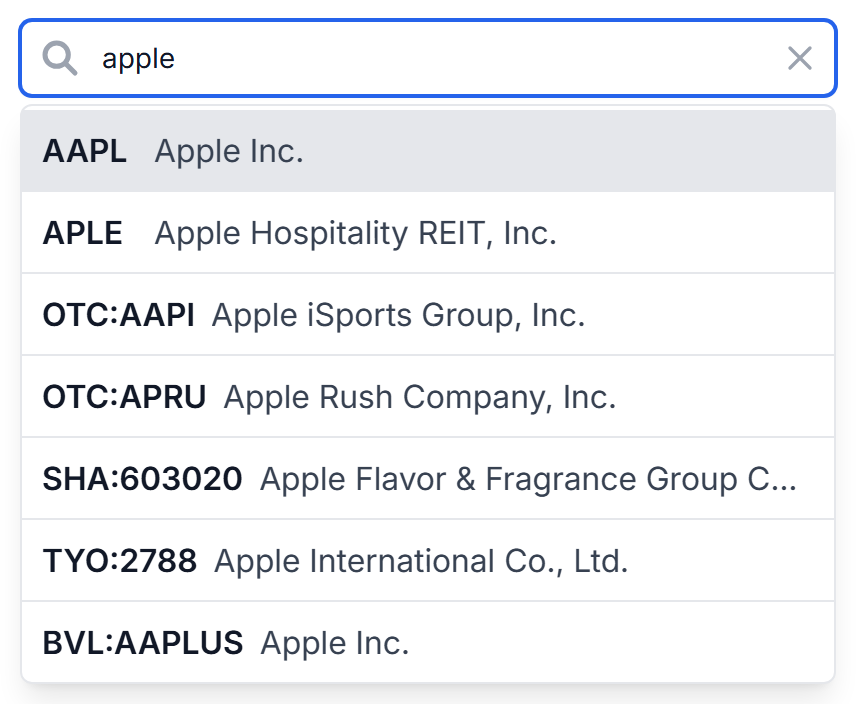
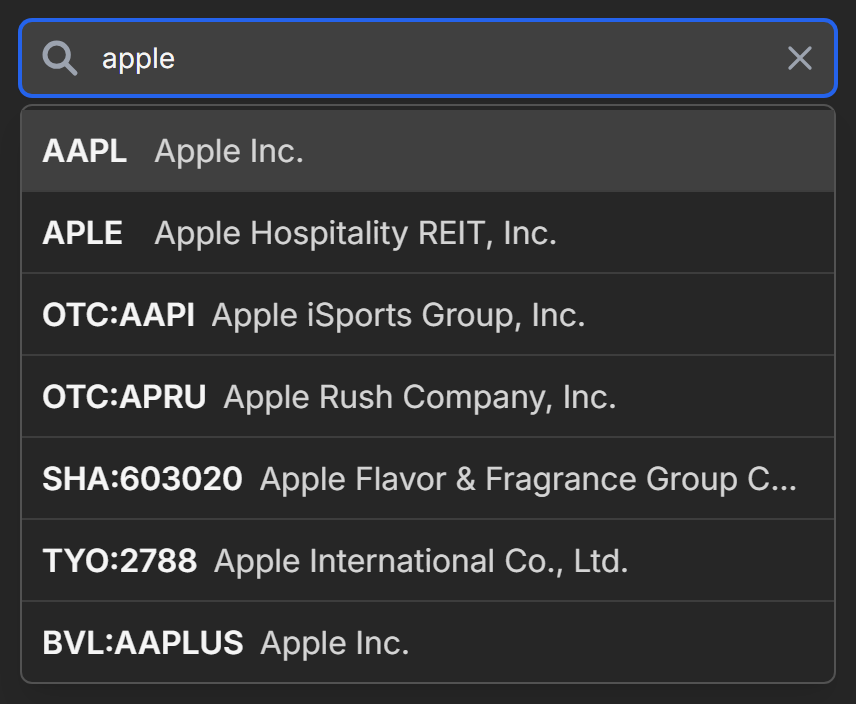
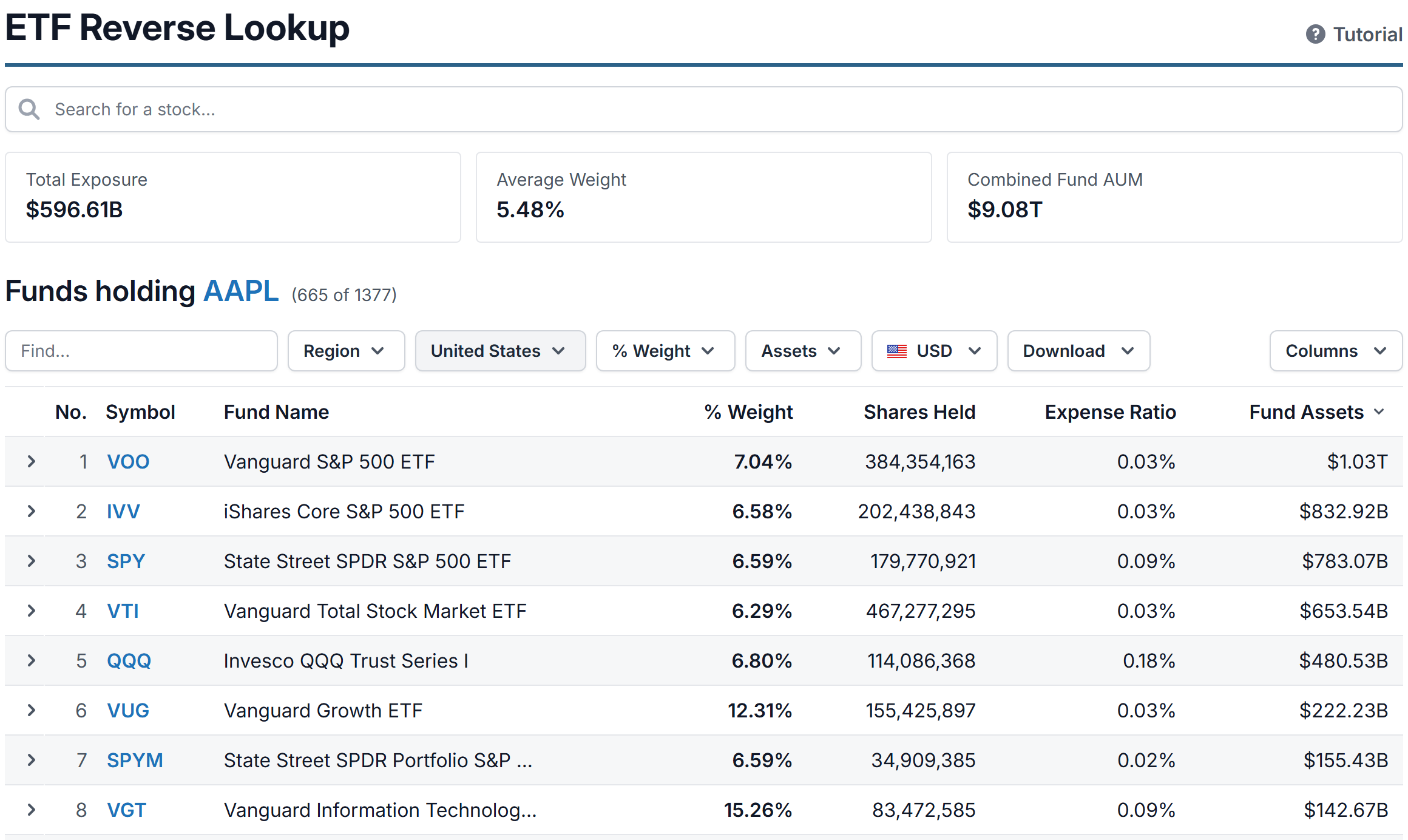
Pick a stock and the results load: a few summary cards, then a table of every fund that holds it. If you just want to poke around first, the empty page offers a few popular tickers to start from.
You search for stocks here, not funds. To go the other way, from a fund to what's inside it, open the fund's own page and check its holdings.
The summary cards
Three cards above the table sum up the whole picture:
- Total Exposure is the combined dollar amount all these funds have invested in the stock. Each fund's assets times its weight, added up.
- Average Weight is the typical position size: the average of the stock's % weight across every fund.
- Combined Fund AUM is the total assets of all the funds in the list.


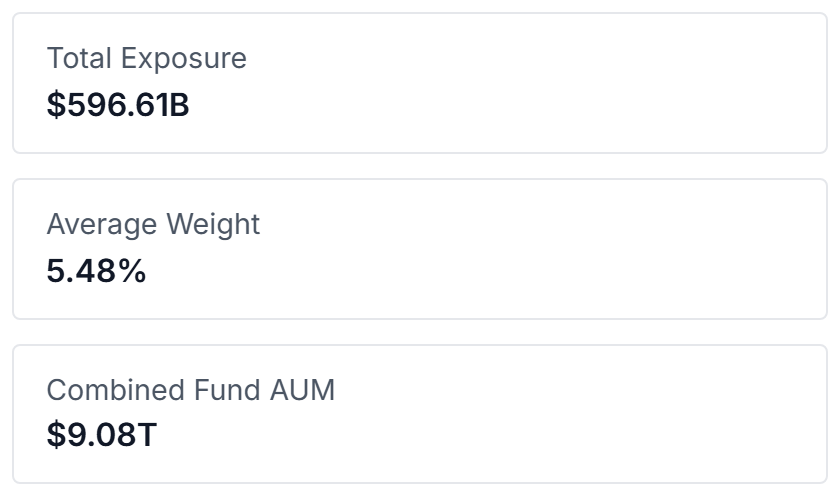
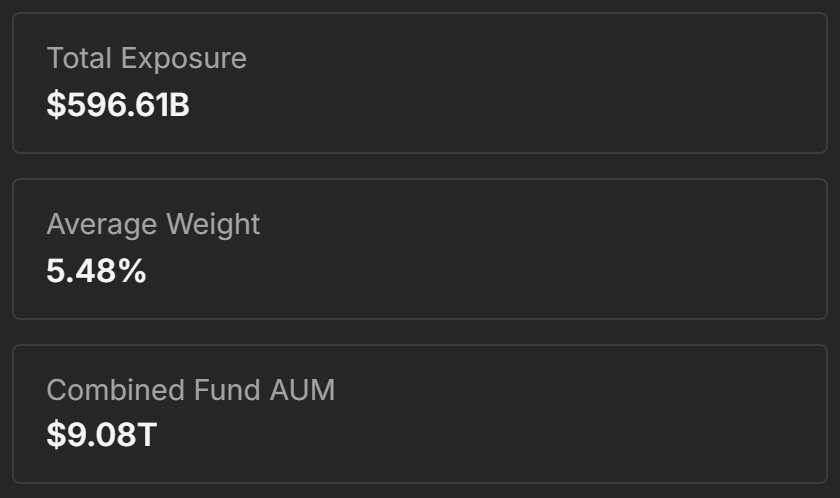
The cards always cover every fund that holds the stock. Filtering the table below doesn't change them, so the headline numbers stay put while you dig around.
Read the results table
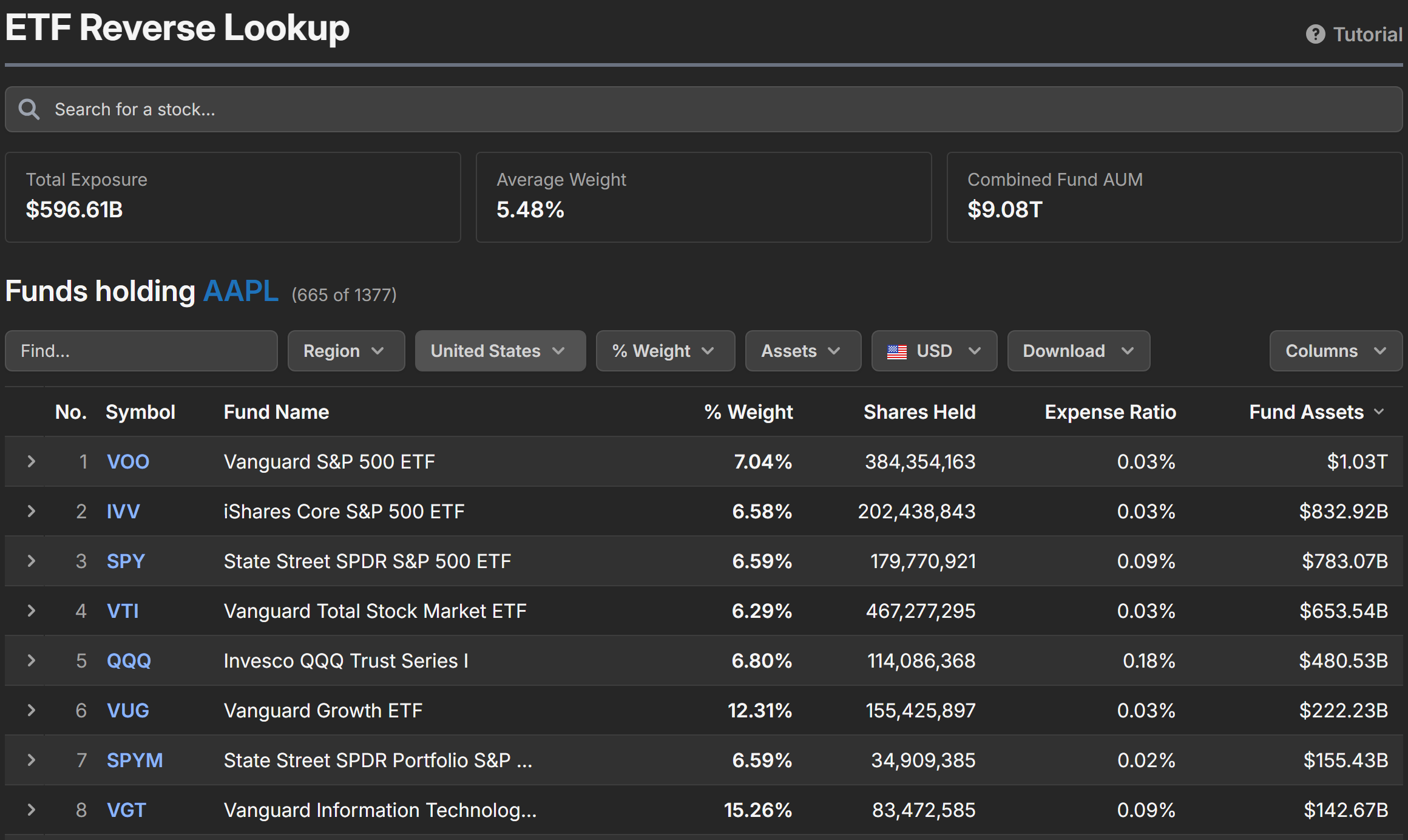
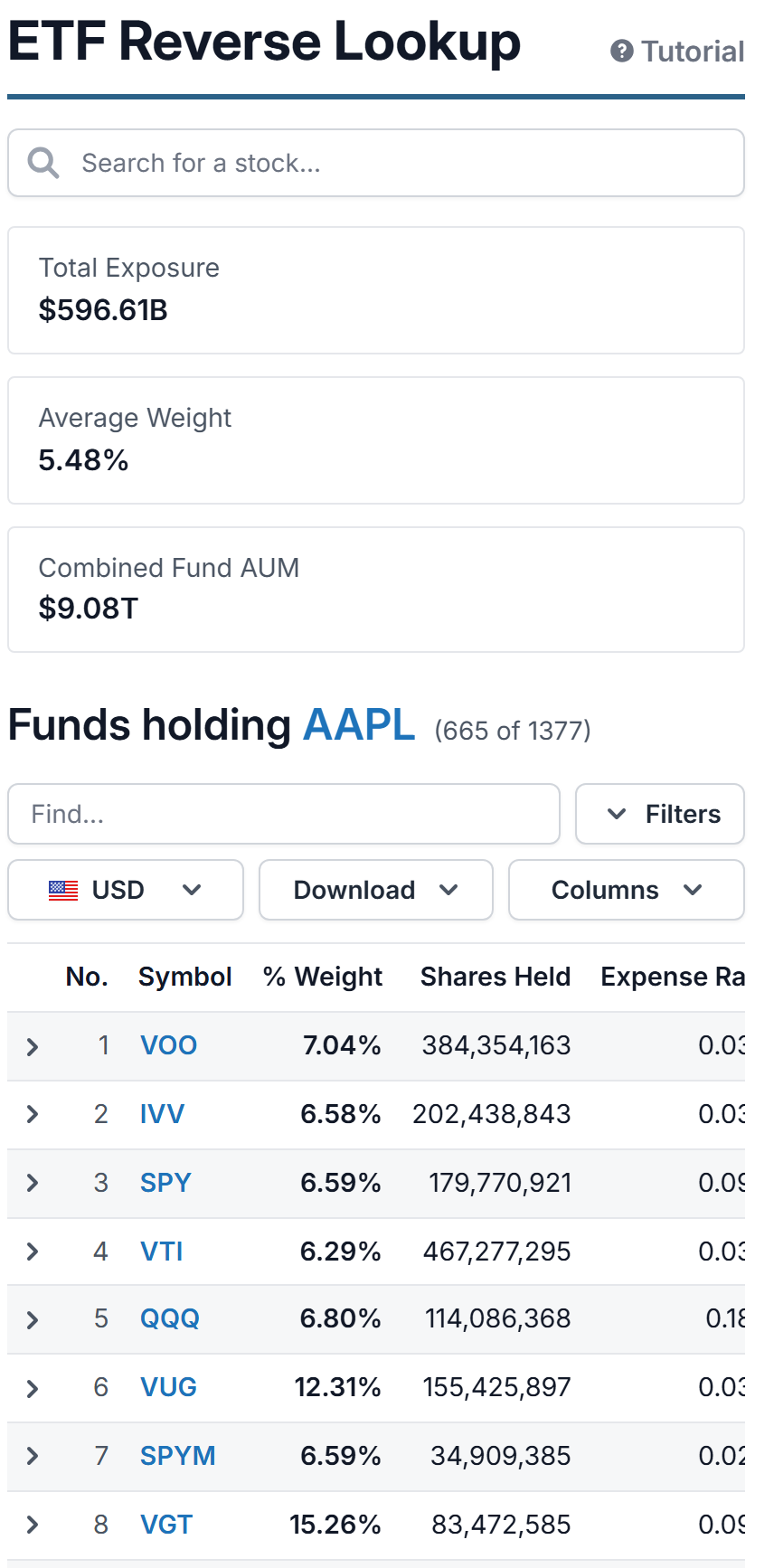
The heading above the table shows how many funds hold the stock, and the ticker in it links to the stock's own page. Each row is one fund. By default you see the fund's symbol and name, the stock's % weight in the fund, the shares held, the expense ratio, and the fund's assets.
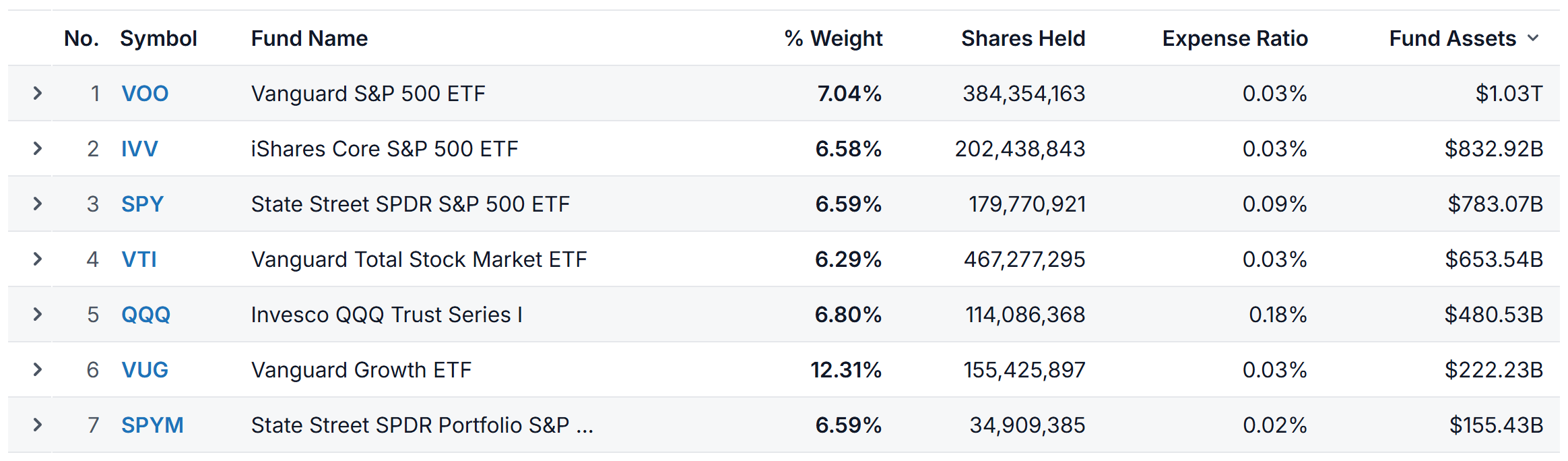
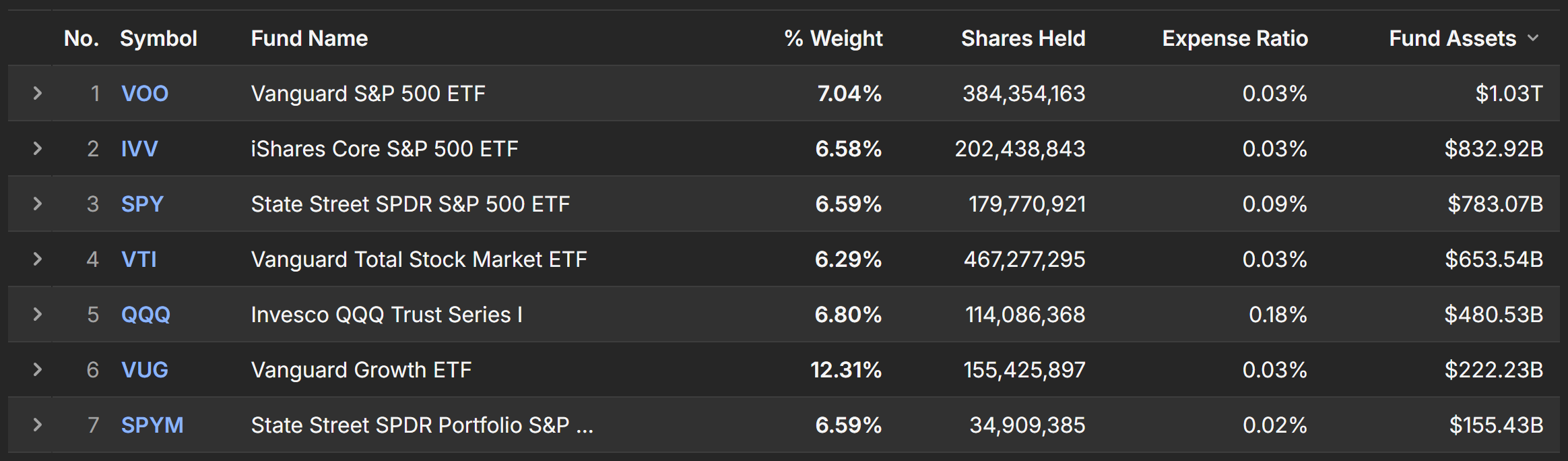
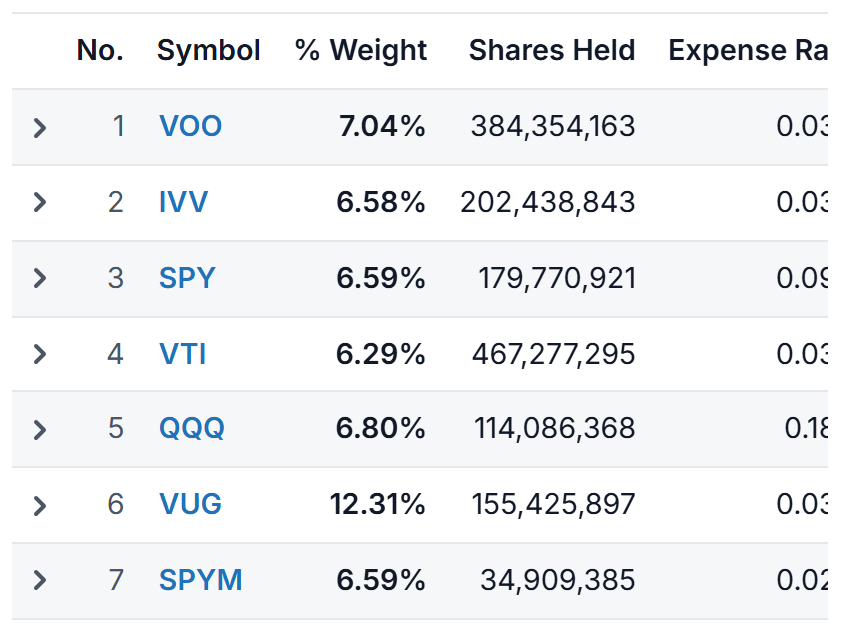
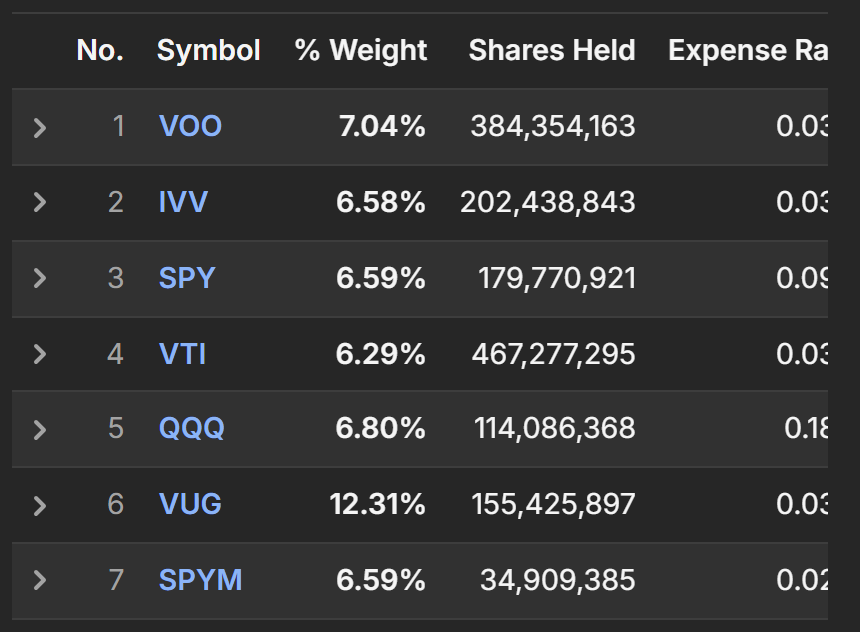
% Weight is the number to watch: it's how much of the fund the stock makes up. A 25% weight moves the fund four times harder than a 6% weight does.
The list starts sorted by Fund Assets, biggest funds first. ClickTap any column header to sort by it instead, and again to flip the direction. Fund symbols link to each fund's page.
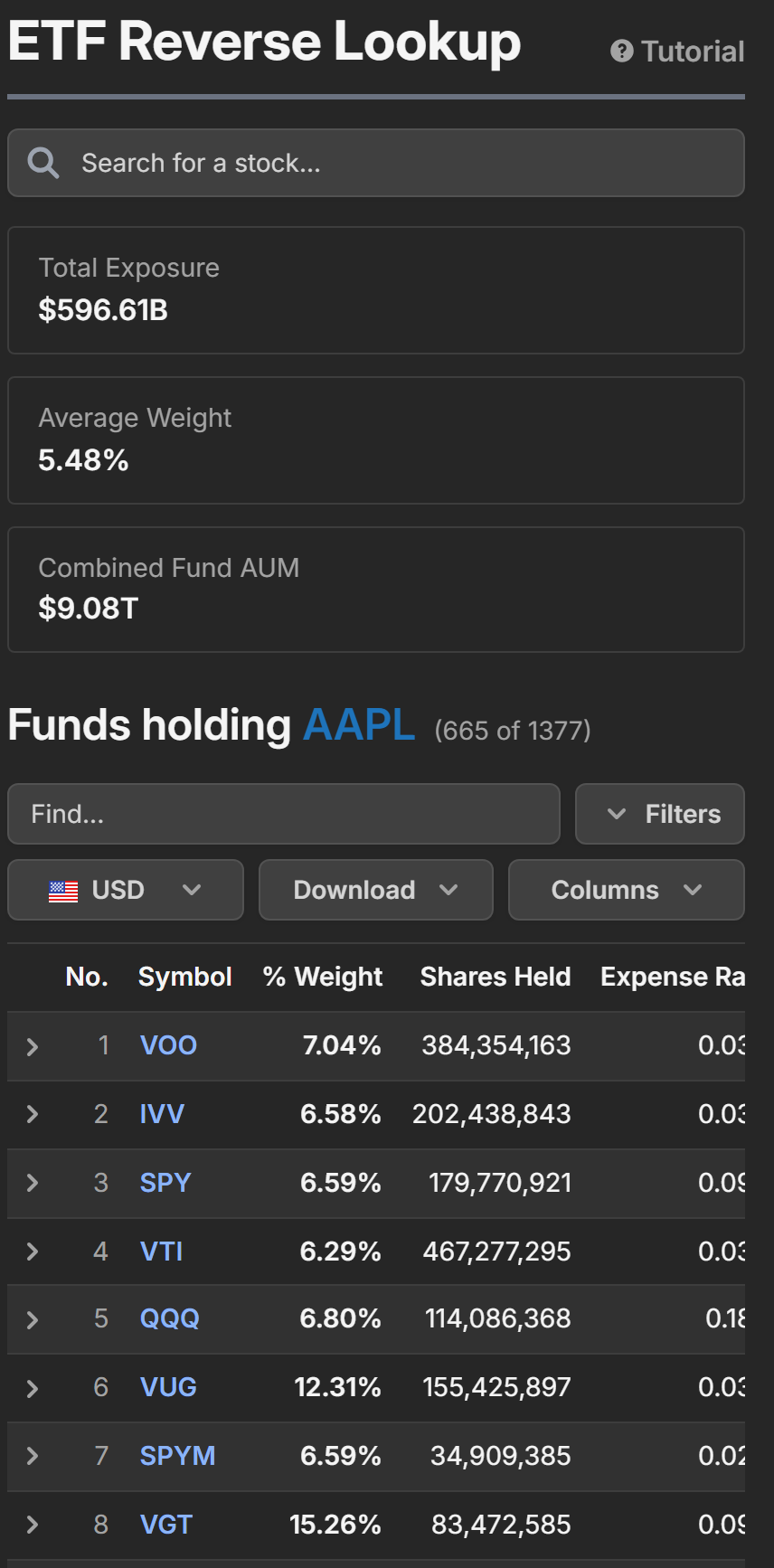
On a phone the table scrolls sideways. The row number and Symbol columns stay pinned on the left, so you always know which fund you're looking at.
Big stocks are held by more than a thousand funds, so the table is paginated. The controls under it flip pages and set how many rows you see at once: 50, 100 or 500.




See inside each fund
ClickTap any row and it expands into a pie chart of that fund's top ten holdings. The stock you searched for is pulled out of the pie and drawn in red, so you can see at a glance how it sits among the fund's other big positions.
Everything beyond the top ten is rolled into an Others slice, and the caption shows the date the holdings are from. ClickTap the row again to close it.
Narrow the list
The bar between the heading and the table holds a Find box and four filters.


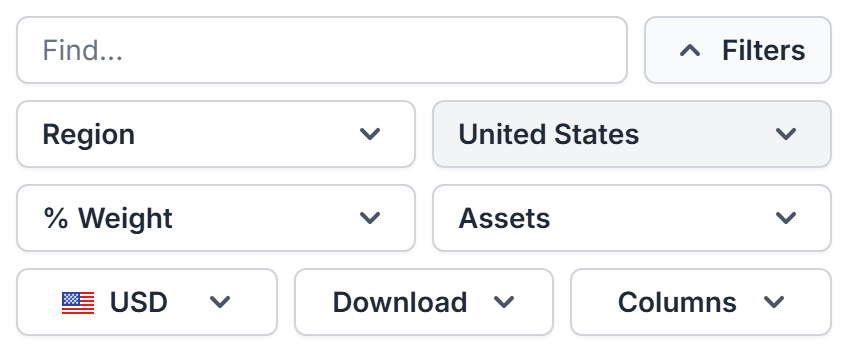
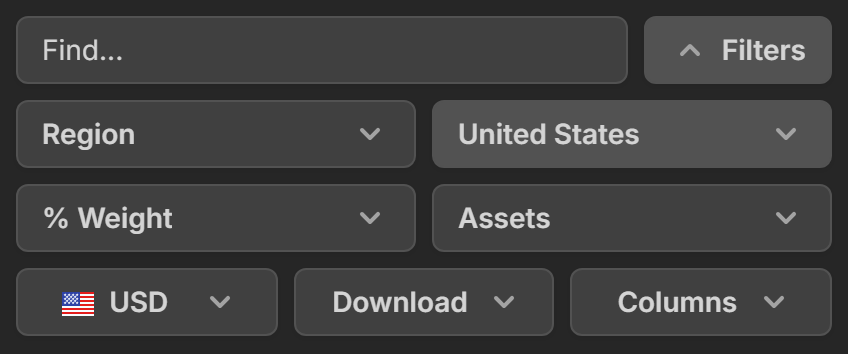
On a phone the four filter chips sit behind the Filters button. Tap it to fold them out.
Find matches as you type against fund symbols, fund names and exchanges. Type "vanguard" and only Vanguard funds remain.
The four chips:
- Region and Country filter by where the fund is listed. The list starts with Country set to United States, since that's what most people want. Pick Any to see every fund worldwide.
- % Weight keeps only funds where the stock is at least 1%, 5% or 10% of the fund.
- Assets keeps only funds managing over $1B, $10B or $100B.
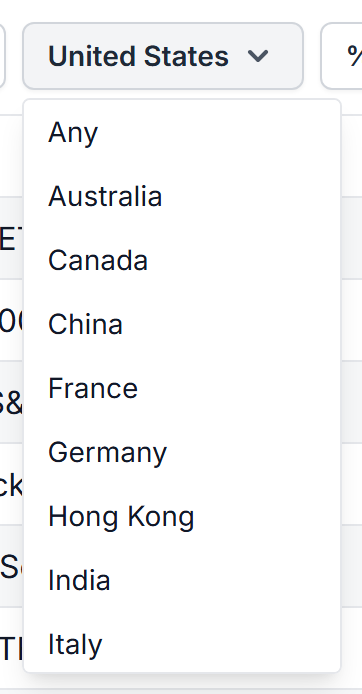
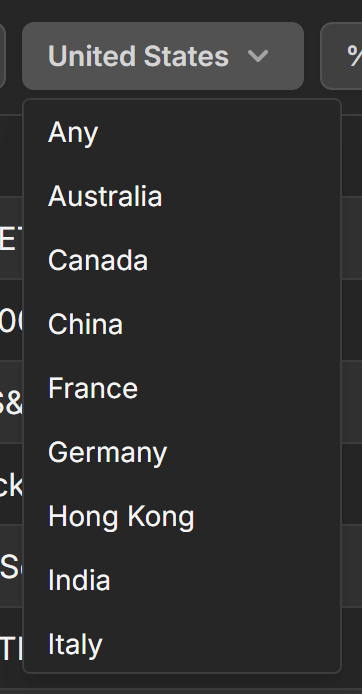
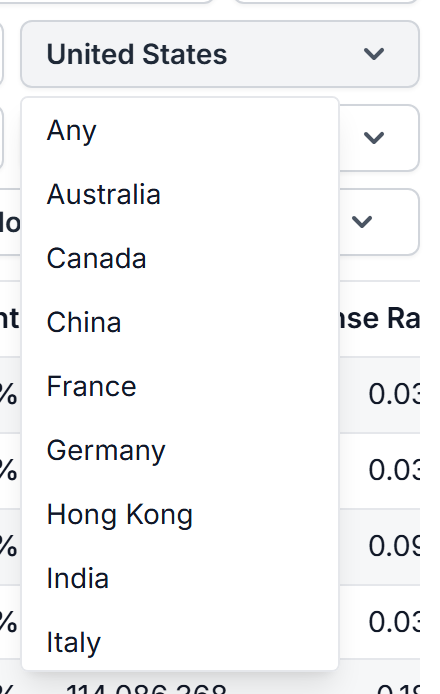
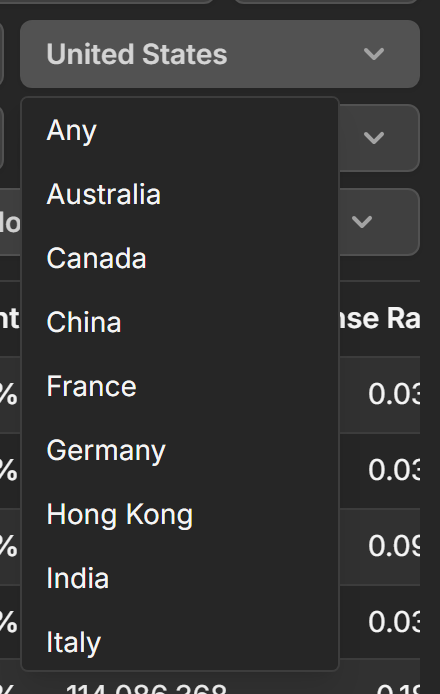
Keep in mind that Region and Country describe where the fund itself trades, not what it invests in. A Germany-listed fund holding Apple counts as Germany here. The two work as one choice: picking a Region clears the Country and the other way around, and the Country list only offers countries that actually have funds in your current results.
Whenever your view differs from the defaults, a Reset button appears at the right end of the bar. One clicktap puts the filters, sorting, columns and Find text back to normal.
Pick your columns
The Columns button opens a checklist of everything the table can show. Beyond the defaults there's the fund's asset class, category, issuer, the index it tracks, its inception date, leverage, whether options trade on it, its total holdings count, and its dividend yield.
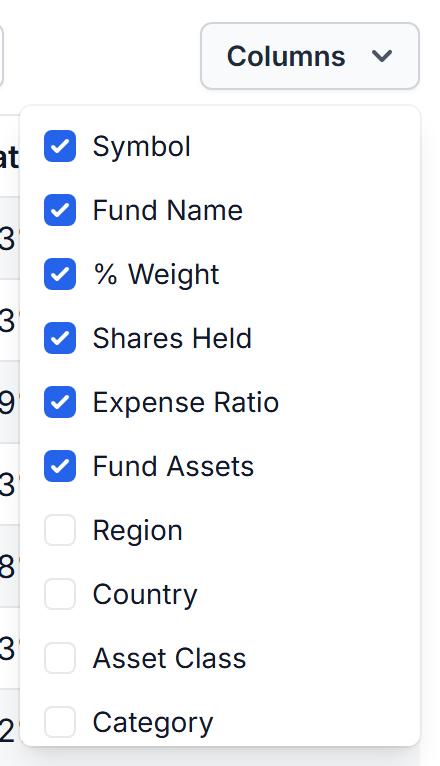
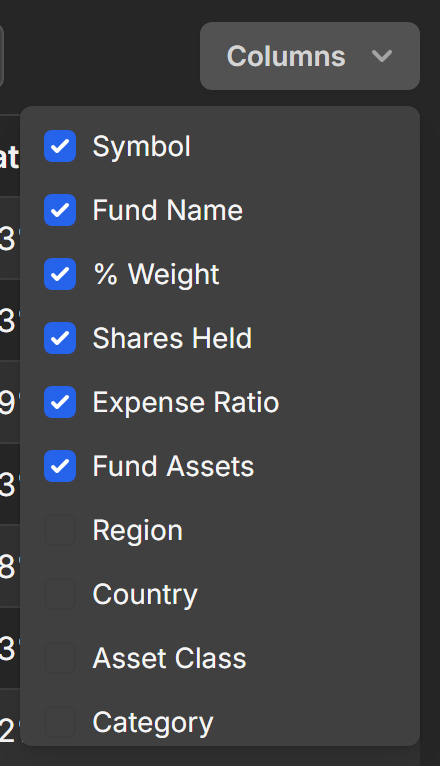
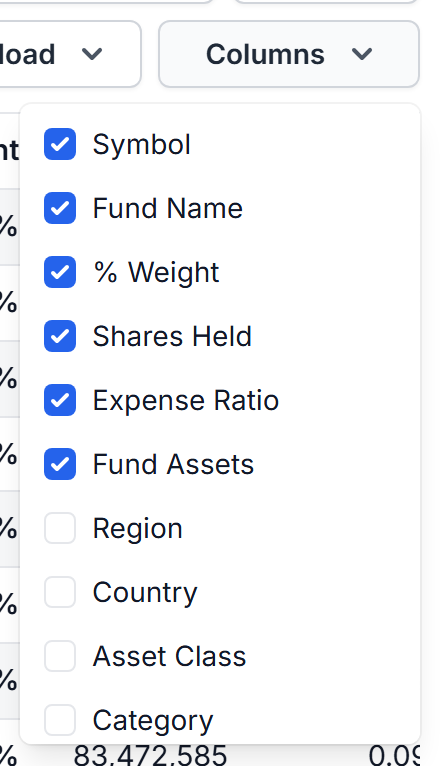
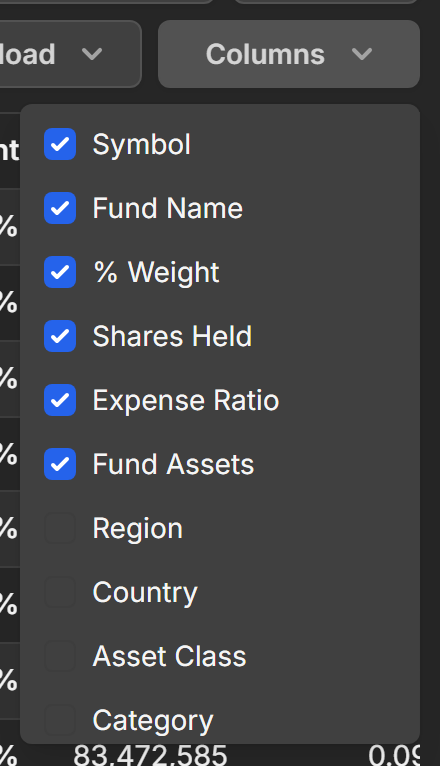
Check what you want, uncheck what you don't. Only Symbol is fixed. Your selection is remembered in your browser, so the table looks the same on your next lookup.
Change the currency
Fund assets are shown in US dollars by default. The currency selector in the filter bar converts Fund Assets, the summary cards, and the Assets filter thresholds to another currency.
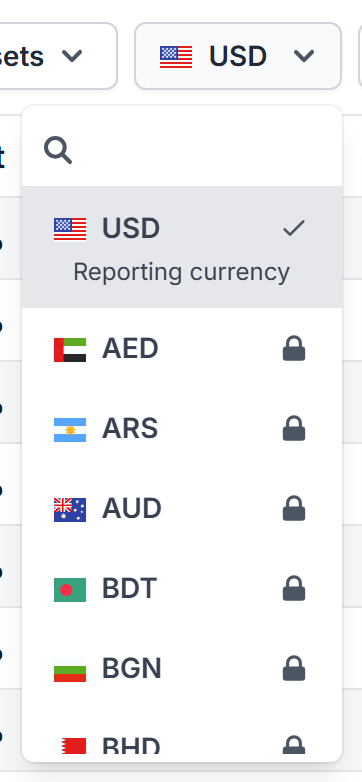
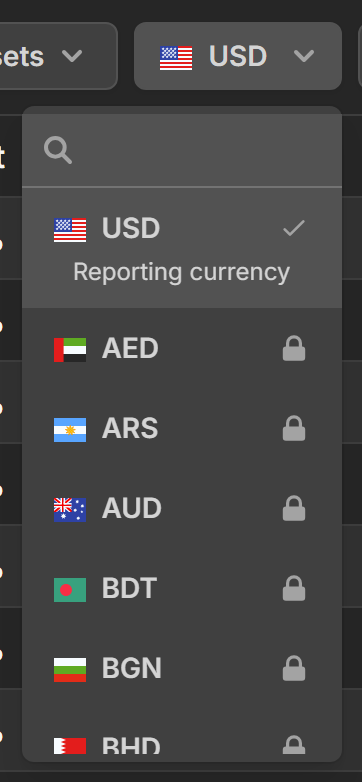
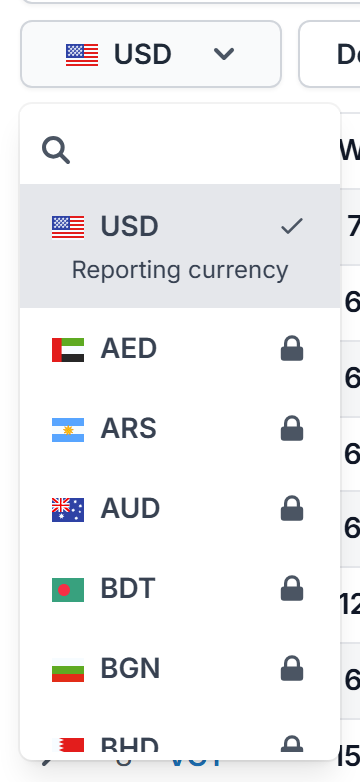
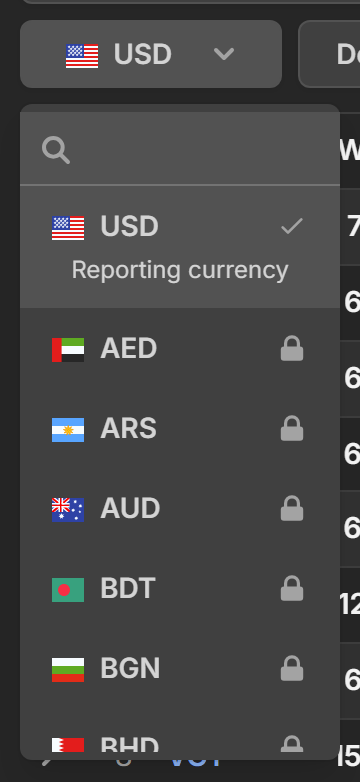
The currency also follows the Country filter on its own: set Country to Japan and assets show in yen, since that's what those funds report in. Converted values get a yellow highlight on the selector so you know you're not looking at the reporting currency.
On a free account you can use USD and the selected country's own currency. Converting to anything else is part of Stock Analysis Pro.
Download the list
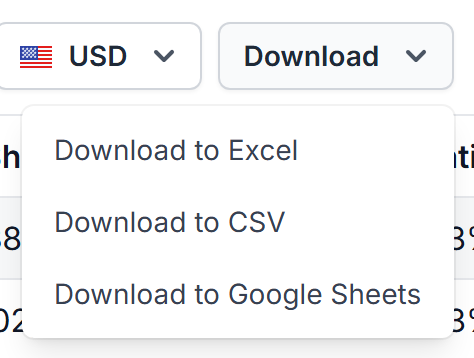
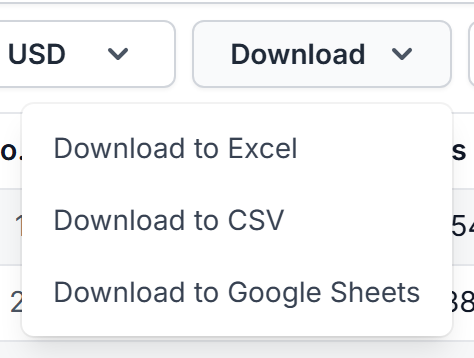
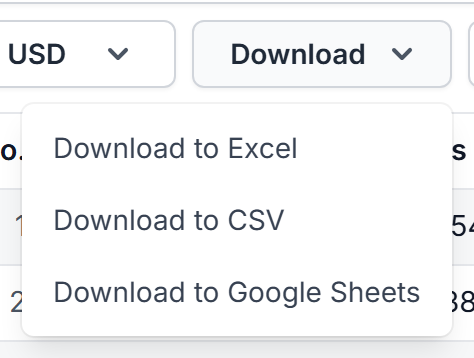
With Stock Analysis Pro, the Download button exports the results to Excel, CSV or Google Sheets.
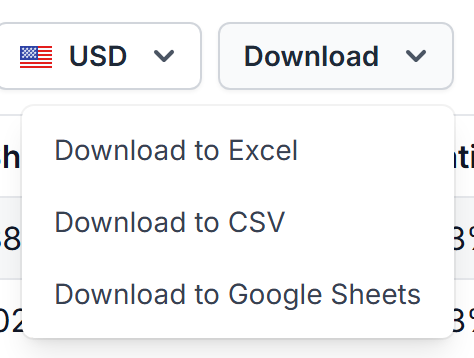
The file contains the full filtered list, not just the page on screen, with the exact columns and sort order you have set. Filter down to what you care about, pick your columns, then export.
Share your view
Everything about your view lives in the page address: the stock, the filters, the sorting, the columns, the page. Copy the URL from your browser and whoever opens it sees exactly what you see. Bookmarks work the same way.
A few finishing tips
- Non-US stocks work too. Search for a stock listed in London or Tokyo and you'll see the funds holding it, which are often listed outside the US, so the Country filter starts wide open in that case.
- The list covers ETFs only. Mutual funds, closed-end funds and ETNs are not included.
- Holdings data is refreshed daily. Funds report on their own schedules, so weights can lag a fund's latest disclosure.
- On big monitors, Pro users can stretch the page with the full-width toggle next to the page title.
That's the whole tool. If a fund you expected is missing, or a number looks off, let us know. We read every message.